
Features · Vocabulary for everyday life
A word-of-the-day widget for the phone you already check.
Put a word where you will notice it. Neologics widgets bring vocabulary to your iPhone Home Screen and Lock Screen, giving you a small reason to pause between everything else on your phone.
Use a widget to discover a word, then open Neologics to explore its meaning and practice. Start with one readable widget in a place you actually look. A glance is a prompt to learn, not proof that you have learned the word.
Keep a word on your Home Screen
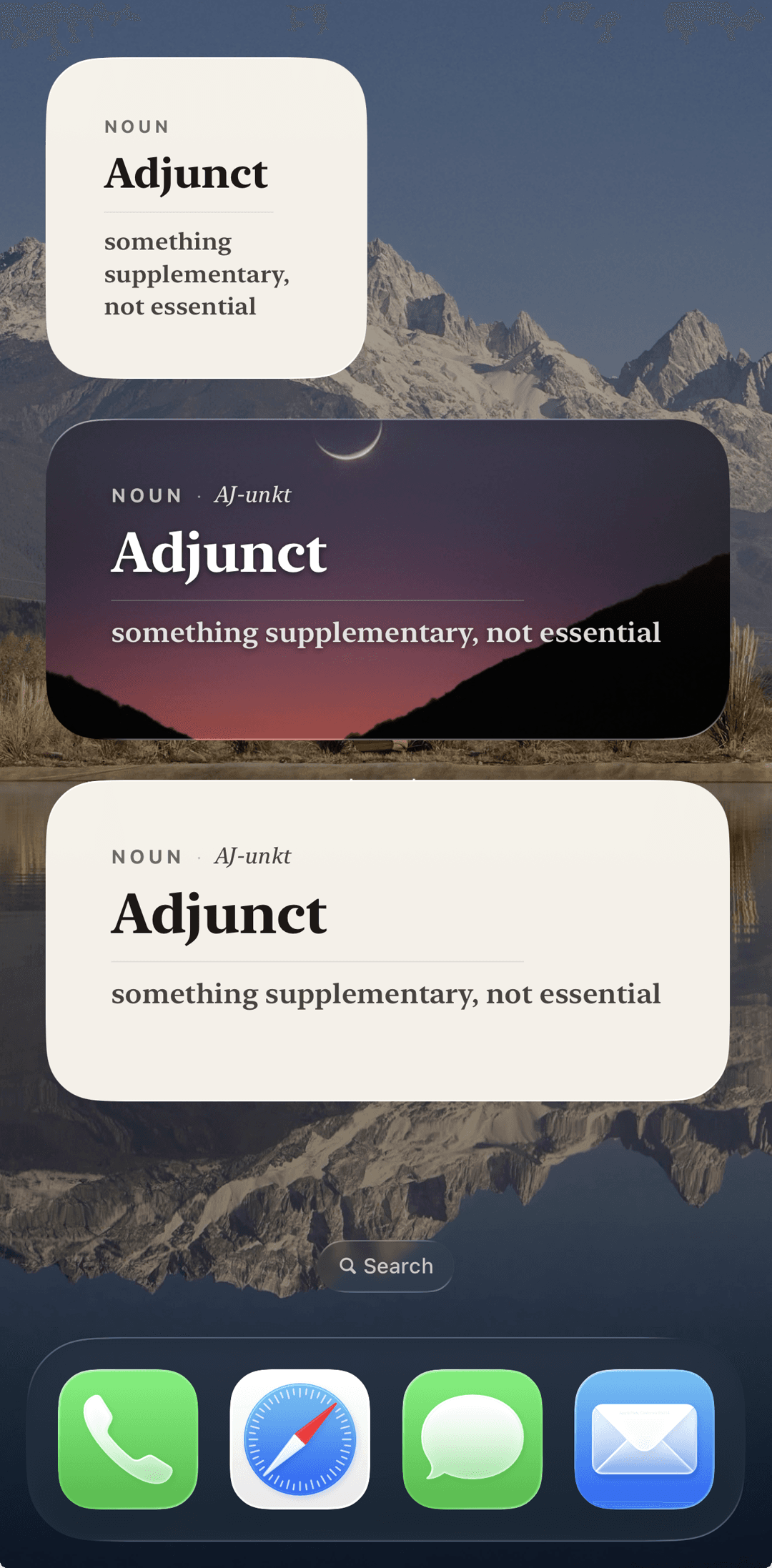
A Home Screen widget can sit beside the apps you use every day. Choose a size and appearance that leave the word and definition readable. A larger widget can give a definition more room; a smaller one takes up less space in an existing layout.
The examples below show Neologics on a real iPhone layout. Widget refreshes are managed by iOS, so a widget should not be treated as a precisely timed notification. Open the app when you want to explore the word in more detail.
Make your Lock Screen a small learning cue
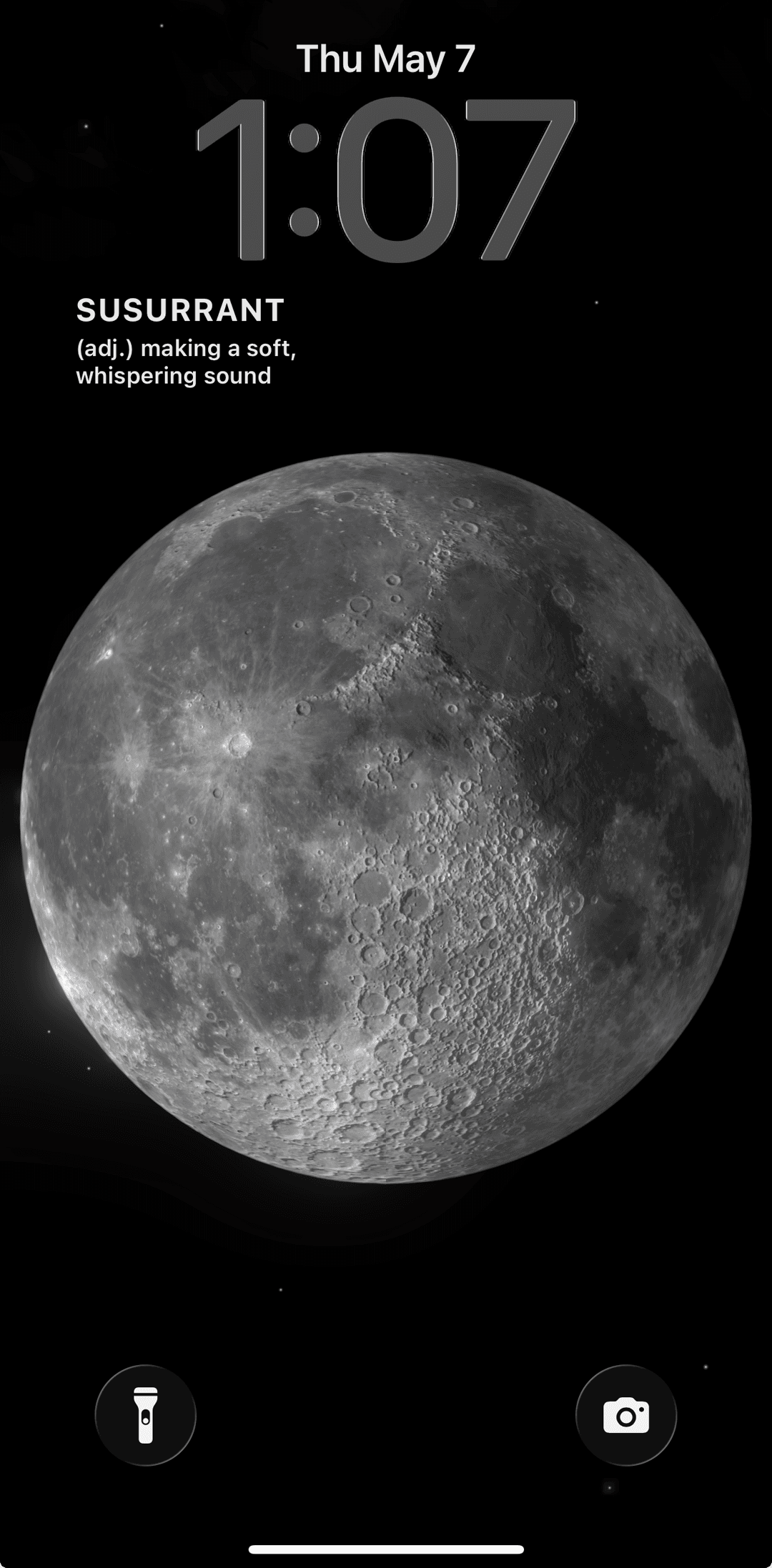
A Lock Screen widget uses the compact space beneath the clock. It is a good place for a brief word encounter, especially if your Home Screen is already full. Keep the layout simple enough that the text remains useful at a glance.
The widget is only one part of a routine. When a word interests you, read the full explanation in Neologics and try using it in a sentence. Return to practice later instead of assuming that seeing it once is enough.
How to add a vocabulary widget on iPhone
Install and open Neologics first. Then use Apple’s widget controls to choose a placement. Names and available sizes can depend on your iOS version.
- For the Home Screen, hold an empty area, open Edit, and choose Add Widget. Search for Neologics, select a size, and add it.
- For the Lock Screen, hold the Lock Screen, choose Customize, and select the Lock Screen. Open the widget area and choose Neologics.
- Finish editing, check that the text is readable, and move or resize your layout if needed.
Sources: Apple: add and edit iPhone widgets (opens in a new tab)
If you cannot find the widget
Confirm that Neologics is installed on the iPhone and has been opened. Look for it in the appropriate widget picker: Home Screen and Lock Screen choices are separate. Check that your app and iOS versions are current.
If the picker still does not show the widget, restart the iPhone and try again. For a persistent problem, contact Neologics support with the app version, iOS version, and the placement you are trying to use. Do not include account or payment details in a screenshot.
Sources: Apple: add and edit iPhone widgets (opens in a new tab)
Turn one glance into a word you can use
Try a small routine: notice the word, predict its meaning, read the explanation, and make a sentence connected to your day. Later, see whether you can recall the word from that sentence. This gives the widget a purpose beyond decoration.
Neologics is available for iPhone and includes optional Pro access. Check the current access options in the app. If you are comparing vocabulary widgets, also examine the learning experience behind them; several vocabulary apps offer widgets.
Try it with a word that matters to you
Your next word starts here.
Explore daily words, origins, and personal vocabulary with Neologics for iPhone.
Free to download. Optional Pro access. Read the FAQ or contact support.